When windows encounters an error from the last shutdown or restart an error report is shown with details of the problem and if you want to send it to Microsoft.
I personally always click on send report because sometimes there is a solution to the error itself but for those who want to turn off this feature here is how to do it:
Right click on the My Computer icon on the desktop (or go to the System icon in the Control Panel)
Select Properties followed by the Advanced tab.
Now click on the Error Reporting tab and check the option to Disable error reporting ,click on OK and then OK again on the Advanced tab menu.
Monday, September 7, 2009


how to disable the guest account in Windows XP
If you want to disable /turn off the guest account in Windows XP then do the following:
Click on Start ,Control Panel ,User Accounts then click on Change an account select Guest and then click on Turn off the guest account .
To activate the account click on turn on instead of off.
Click on Start ,Control Panel ,User Accounts then click on Change an account select Guest and then click on Turn off the guest account .
To activate the account click on turn on instead of off.
Missing icons on desktop Windows XP
All the desktop icons have vanished only the taskbar is shown ,now what!
In this case there is a simple fix:
Right click the desktop and in the context menu select Arrange Icons By and make sure Show Desktop Icons is ticked.
If you want to only add the My Computer ,My documents ,Network icons on a new installation or computer then follow the steps in this article:
http://mycomputerdidwhat.blogspot.com/2008/05/how-to-add-my-computer-my-documents.html
In this case there is a simple fix:
Right click the desktop and in the context menu select Arrange Icons By and make sure Show Desktop Icons is ticked.
If you want to only add the My Computer ,My documents ,Network icons on a new installation or computer then follow the steps in this article:
http://mycomputerdidwhat.blogspot.com/2008/05/how-to-add-my-computer-my-documents.html
Monday, August 24, 2009
Free download Windows Defender for Windows XP
If you want to use this program for Windows XP then you can get it for free from Microsoft.
Here is the link:
http://www.microsoft.com/DownLoads/details.aspx?familyid=435BFCE7-DA2B-4A6A-AFA4-F7F14E605A0D&displaylang=en
Here is the link:
http://www.microsoft.com/DownLoads/details.aspx?familyid=435BFCE7-DA2B-4A6A-AFA4-F7F14E605A0D&displaylang=en
Friday, August 14, 2009
Error: Action failed for registry key AVG antivirus error
When trying to install the free AVG antivirus I received the following computer error:
Error: Action failed for registry key HKLM\SOFTWARE\Microsoft\Windows NT\CurrentVersion\Windows: creating registry key
After some research it seems to be a permission problem ,to solve this do the following:
Click Start ,Run and then type regedit and then OK.
Now navigate to that key in the registry ,start at the top left side and click to expand the keys one by one.
Starting with HKLM (which is short for HKEY_LOCAL_MACHINE.)
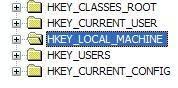
And then Software ,Microsoft ,Windows NT ,CurrentVersion ,Windows.
On the Windows key right click it and choose the option permissions.
On the permissions tab click on the Advanced button near the bottom right.
On the Advanced menu make sure all the users are set to Allow and not Deny ,if they are set to deny then select that user and click on Edit ,then click and mark the full control checkbox.
Restart the computer and AVG will now install.
If you get an access denied error when trying to change these settings then the best would be start the system in Safe Mode and then log in with the administrator account and try the steps from there.
Change your current antivirus to Panda Antivirus Pro 2010 and forget these problems.
Free trial period too :)
Error: Action failed for registry key HKLM\SOFTWARE\Microsoft\Windows NT\CurrentVersion\Windows: creating registry key
After some research it seems to be a permission problem ,to solve this do the following:
Click Start ,Run and then type regedit and then OK.
Now navigate to that key in the registry ,start at the top left side and click to expand the keys one by one.
Starting with HKLM (which is short for HKEY_LOCAL_MACHINE.)

And then Software ,Microsoft ,Windows NT ,CurrentVersion ,Windows.
On the Windows key right click it and choose the option permissions.
On the permissions tab click on the Advanced button near the bottom right.
On the Advanced menu make sure all the users are set to Allow and not Deny ,if they are set to deny then select that user and click on Edit ,then click and mark the full control checkbox.
Restart the computer and AVG will now install.
If you get an access denied error when trying to change these settings then the best would be start the system in Safe Mode and then log in with the administrator account and try the steps from there.
Change your current antivirus to Panda Antivirus Pro 2010 and forget these problems.
Free trial period too :)
Friday, June 19, 2009
Philips printer and fax drivers.
Philips doesn't support their faxes nor printers since 2002 as it was bought by Sagem ,so all support is done through them.
To get drivers for your philips product go here:
http://support.sagem-communications.com/site/page_accueil.php?site=1&pays=uk
To get drivers for your philips product go here:
http://support.sagem-communications.com/site/page_accueil.php?site=1&pays=uk
Thursday, May 14, 2009
how to export your address book in Outlook Express 6
To export your address book contacts in Outlook Express 6 do the following.
Open Outlook Express and click on Address book or Tools ,Address book.
When the address book opens click on File ,Export and then Address Book (WAB).
Choose the destination and give it a name and then click on Open.
The address book has now been exported to be used on another computer or if you just want a backup.
Open Outlook Express and click on Address book or Tools ,Address book.
When the address book opens click on File ,Export and then Address Book (WAB).
Choose the destination and give it a name and then click on Open.
The address book has now been exported to be used on another computer or if you just want a backup.
Subscribe to:
Posts (Atom)

 Posts
Posts


 Stumble It!


